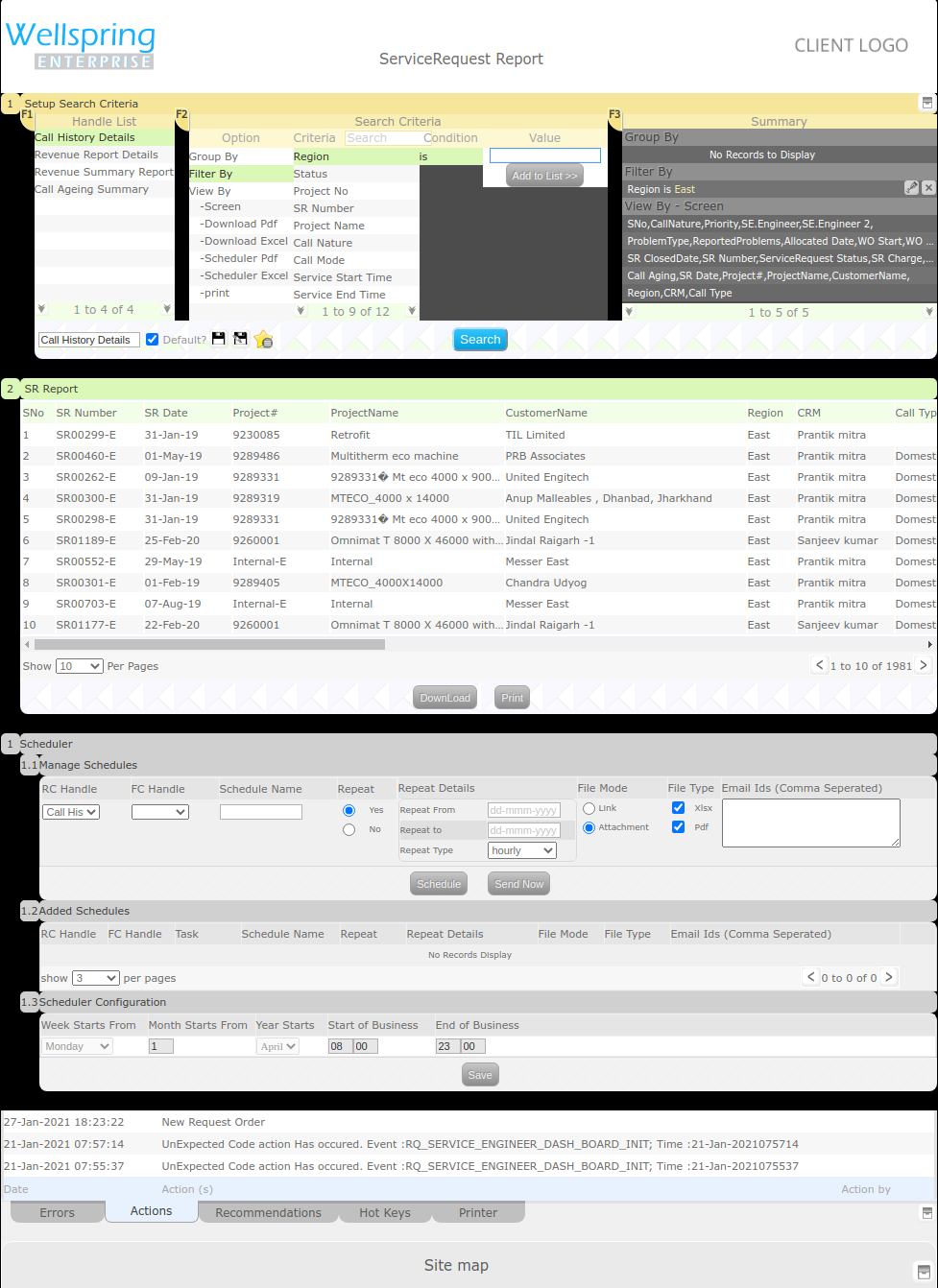
1
S.NO
S.NO
AlphaNumeric
AutoDisplayed
Only the Available S.NO hould get Displayed
2
SR Number
SR Number
Date
AutoDisplayed
Only the SR Number Should get AutoDisplayed
3
SR Date
SR Date
Date
AutoDisplayed
Only the Valid SR Date Should get AutoDisplayed
4
Project
Project
Text
AutoDisplayed
Only the Project Should get AutoDisplayed
5
Project Name
Project Name
Text
AutoDisplayed
Only the Project Name Should get AutoDisplayed
6
Customer Name
Customer Name
Text
AutoDisplayed
Only the Customer Name Should get AutoDisplayed
7
CRM
CRM
Text
AutoDisplayed
Only the CRM Should get AutoDisplayed
8
Region
Region
Text
AutoDisplayed
Only the Region Should get AutoDisplayed
9
Call Type
Call Type
Text
AutoDisplayed
Only the Call Type Should get AutoDisplayed
10
Call Nature
Call Nature
Text
AutoDisplayed
Only the Call Type Should get AutoDisplayed
11
Priority
Priority
Text
AutoDisplayed
Only the Priority Should get AutoDisplayed
12
SE Engineer
SE Engineer
Text
AutoDisplayed
Only the SE Engineer Should get AutoDisplayed
13
Problem Type
Problem Type
Text
AutoDisplayed
Only the Problem Type Should get AutoDisplayed
14
Reported Problem
Reported Problem
Text
AutoDisplayed
Only the Reported Problem Should get AutoDisplayed
15
Allocated Date
Allocated Date
Date
AutoDisplayed
Only the Allocated Date Should get AutoDisplayed
16
WO Start
WO Start
Date
AutoDisplayed
Only the WO Start Should get AutoDisplayed
17
WO End
WO End
Date
AutoDisplayed
Only the WO End Should get AutoDisplayed
18
SR Closed Date
SR Closed Date
Date
AutoDisplayed
Only the SR Closed Date Should get AutoDisplayed
19
Service Request
Service Request
Date
AutoDisplayed
Only the Service Request Should get AutoDisplayed
20
SR Charge repair Time
SR Charge repair Time
Text
AutoDisplayed
Only the SR Charge repair Time Should get AutoDisplayed
21
Call Aging
Call Aging
Text
AutoDisplayed
Only the CRM Should get AutoDisplayed
22
Criteria
Display the Criteria list
Text
Instant Search
Criteria list can be selected from the Instant Search
23
Value
Display the list of criteria in options
Text
Instant Search
Value can be selected from the Instant Search
24
Handle Name
Calling History Report Detail the Handle List in the screen
Text
Text box
The Handle List should be calling History Detail Report
25
Default
Enable the check box
Text
Check box
The Default Check box is enable or disable
26
RC Handle
Display the RC Handle in drop down list
Text
Drop down
RC Handle Can be selected from drop down
27
FC Handle
Display the FC Handle in drop down list
Text
Drop down
FC Handle Can be selected from drop down
28
Schedule Name
Display the Schedule Name in the screen
Text
Text box
Schedule Name can be entered
29
Repeat
Select the radio button
Text
Radio button
The Repeat Radio button should be selected
30
Repeat From
Display the Repeat From in date format
Text,number
Text box
Repeat From date can be entered
31
Repeat to
Display the Repeat TO in date format
Text,number
Text box
Repeat To date can be entered
32
Repeat Type
Display the Repeat Type in drop down list
Text
Drop down
Repeat Type Can be selected from drop down
33
File Mode
Select the radio button
Text
Radio button
-
The File Mode
-
should be selected
34
File Type
Enable the check box
Text
Check box
The file type Check box is enable or disable
35
Email Ids
Display the Email Id in the screen
Text
Text box
Email Ids can be entered
36
Week Starts From
Display the Week Starts From in drop down list
Text
Drop down
Week Starts From Can be selected from drop down
37
Year Starts
Display the Repeat Type in drop down list
Text
Drop down
Year Starts Can be selected from drop down
38
Month Starts From
The Month Starts From should be entered
Number
Text box
The Month Starts From should be user Entered
39
Start Of Business
The Startof Business should be entered
Number
Text box
The Start of Business should be user Entered
40
End of Business
The E nd of Business should be entered
Number
Text box
The End of Business should be user Entered